Gallery — Character Avatars and Thumbnails
Learn how the Gallery works: browse player images, upload avatars or thumbnails, prepare images and check moderation and submission statuses.
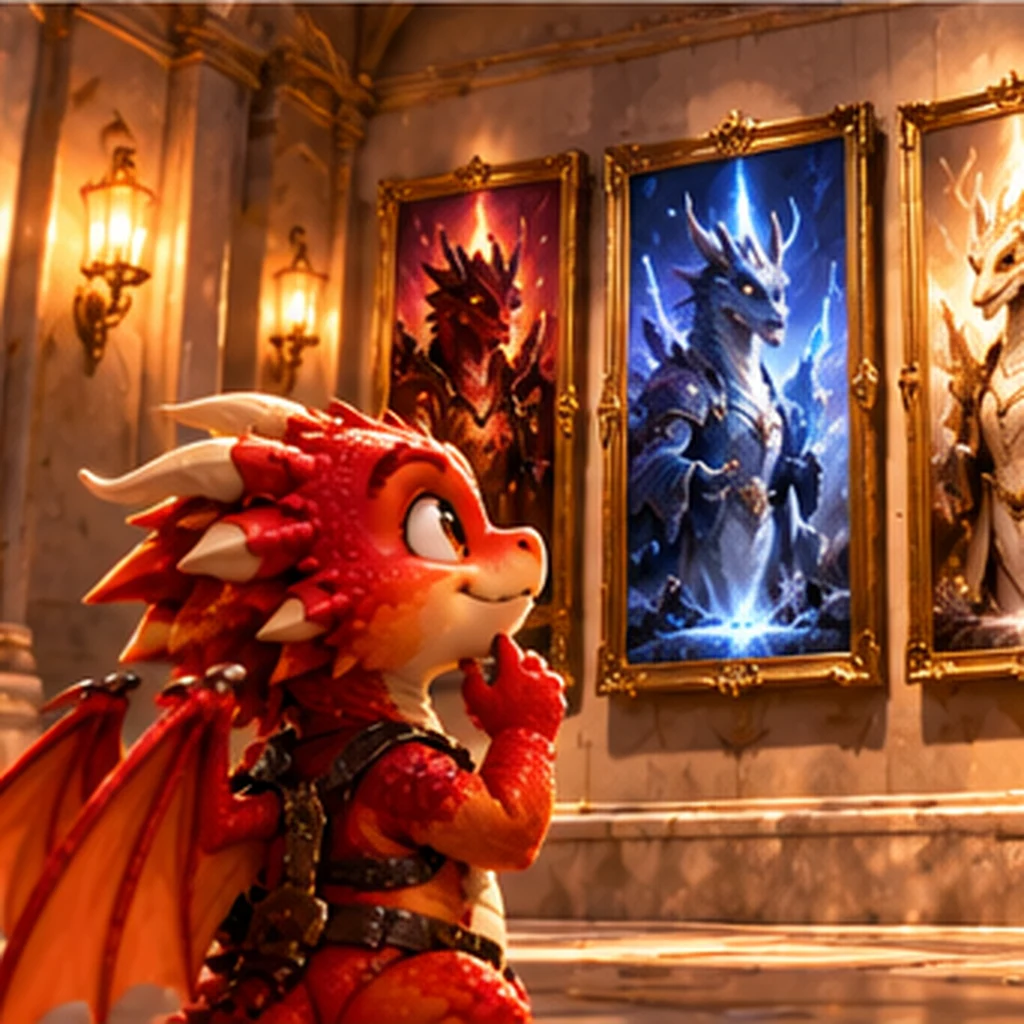
The Gallery — faces of heroes
Every traveler has a story, and their appearance is part of it. The Gallery is dedicated to character images: see other players' avatars and prepare your own portrait or thumbnail.
The main page has two sections: Avatars and Thumbnails. Choose the appropriate section before uploading a file.
Avatars and thumbnails are different
An avatar is a large character image used in designated areas of the game. It helps establish your hero's appearance.
A thumbnail is a compact square image for small cards and other places where a full-size avatar would be impractical.
These images have different file requirements and preparation methods, so they are uploaded through separate tabs.
Viewing other players' work
The Gallery contains available images of other heroes. You can browse pages, open a selected image for a larger view and return to the collection.
Only images permitted under the Gallery rules are published. Not every file submitted by players appears here immediately.
Preparing your avatar
Open the avatar tab and use the file selection button. Avatars accept PNG or GIF. The page displays the permitted file size and other restrictions.
After selecting a file, a preview of the original image appears. The next step is to prepare or convert it to the appropriate game format.
If you select a GIF, animation may be preserved where supported. Examine the result carefully before submitting it.
Uploading a thumbnail
Thumbnails accept PNG, JPG, WebP or GIF, subject to the stated restrictions. The prepared thumbnail is converted to a 300×300 square image.
After conversion, check that the face or the hero's main feature is clearly visible at the reduced size: thumbnails are displayed much smaller than full-size avatars.
Submitting for review
A prepared image does not necessarily appear in the game immediately. After checking the preview, select Submit to send your application for moderation.
You can see your submission's status next to it: prepared, under review, approved or rejected. If there are issues, follow the result displayed.
Do not submit identical versions repeatedly before receiving a response to the previous application.
If the image is unsuitable
If necessary, prepare another file that meets the format and content requirements. If the avatar has been lost or cannot be prepared, the Gallery informs you.
Choose an image that fits the spirit of the game and the rules for uploaded material.
Appearance does not make a hero stronger in battle, but it helps others remember their name.