Shop — Goods, Equipment and Trading
Learn how the city Shop works: categories and subcategories, buying, selling, rentals, disposal, item tooltips and access to the VIP Shop.
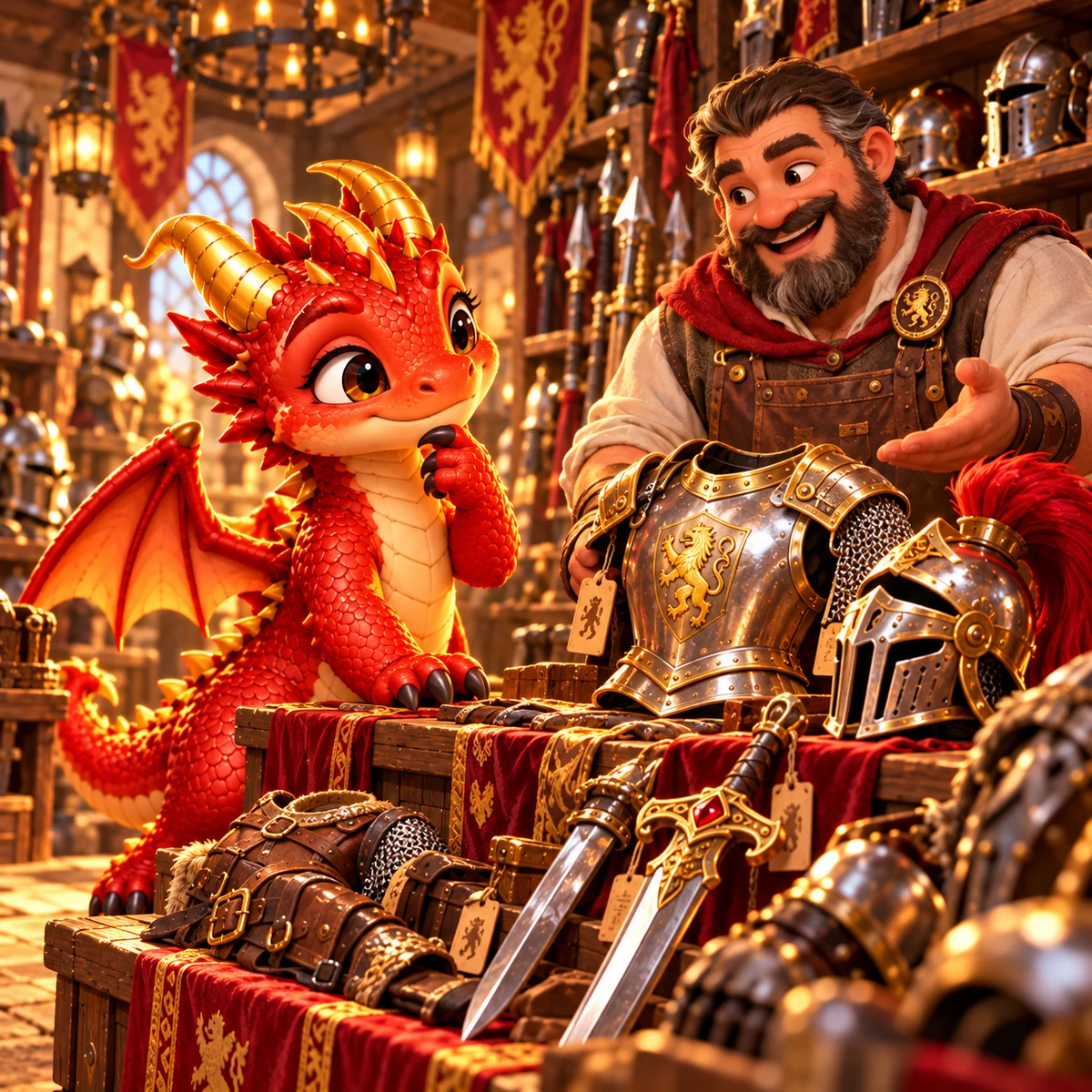
Shop — preparing for adventures
At the city Shop you can buy useful items, replenish supplies and sell things you no longer need. It is one of the basic buildings in every city. You do not have to know the selection in advance: the Shop is divided into categories, many with subcategories, to help you find an item quickly.
Unlike the VIP Shop, ordinary transactions use silver. The exact price, stock and resale value are always shown on the item card.
Where to find the main sections
Three modes are available at the top of the trading area: Goods, Rentals and Discard Item. Switch between them according to your needs. Do not confuse purchasing, temporary rentals and permanently removing items; they have entirely different results.
In Goods mode, first select a category. Where applicable, subcategories appear below, followed by more specific equipment slots. Only goods matching the selected path are displayed.
Main product categories
Scrolls. Magical consumables that can be prepared for battles and other designated actions.
Jewelry. Rings, amulets and bracelets. Each type has its own tab, so you do not need to browse all jewelry at once.
Warrior equipment. Divided into Weapons and Armor. Armor is further divided by slot: head, body, legs or boots. Here you can look for items suited to your combat style.
Mage equipment. Divided into Weapons and Robes. Robes also have tabs for individual equipment slots, making it easier to compare replacements for a particular item.
Neutral items. Includes separate Monster Weapons and Monster Armor subcategories.
Runes. A separate category for rune items when available in the Shop's selection. Read the Runes article to learn about their purpose, tiers and engraving.
Resources. Materials and other items needed for designated game activities.
The availability of a particular item depends on the Shop's current offerings. An empty category is not an error: it may temporarily have no items available.
What the additional equipment tabs are for
Selecting jewelry, armor or robe categories reveals buttons for specific slots. For example, instead of seeing a large collection of items, you can display only rings or boots.
This classification is based on an item's function, not just its name. An unusually named item will still appear under the appropriate slot if that is where it can be equipped. Special items that do not fit the standard groups may appear under an Other tab.
How to inspect an item before buying
The product card shows its image, name, price and available quantity. Hover over the item to open a detailed tooltip. On a phone or tablet, tap the card to view details.
The tooltip explains the item's purpose, tier, level or magic requirements, attributes, rune sockets and active skills. If an item has built-in runes, their descriptions are also available. For items belonging to a set, set membership is displayed.
Compare more than a single attack value: consider defense, the appropriate slot, skills, runes and additional requirements. A seemingly good purchase may not be suitable for your hero right now.
Buying goods
Select the required category and item. If multiple copies can be purchased, enter the quantity. Before selecting Buy, check the price and make sure you have enough silver.
After a successful purchase, the item is added to your character's possessions and trading information updates. Shop stock is limited: if an item is out of stock, you cannot buy it.
Selling items to the Shop
Items eligible for sale may have a Sell button. Enter the quantity and check the amount you will receive. The buyback price differs from the price of a new purchase.
The sale price may be affected by a trade license issued at the City Council. The Shop displays information about the license's effect. If the Shop's stock for an item is full, disposal may be offered instead of a normal sale; do not confuse these actions.
Renting temporary items
Switch to the Rentals tab to see temporary item offers. The card displays the rental duration and price. The period begins immediately after rental, and the item disappears from your possessions when it expires.
Check the duration beforehand. Rentals are useful for a limited adventure, but a temporary item does not become permanent. If there are no offers, a message will indicate this.
Discarding and disposing of items
The Discard Item mode is for items not in the current catalog and certain temporary items. Here you can remove unnecessary possessions. Some items can also be disposed of in the ordinary trading list.
Important: ordinary item removal is irreversible. Special disposal rules apply to certain items, and the corresponding result is displayed before confirmation. Always check the button and tooltip before getting rid of a valuable item.
Where to find the VIP Shop
On the right side of the ordinary Shop, there is a separate banner for the VIP Shop. Select it to open a special department with gold-priced offers and its own equipment preview.
For details on choosing sets, viewing their properties, buying pieces individually and additional services, see VIP Shop — Sets and Preview.
Auction and additional offers
Below the VIP Shop entrance is the Auction area. If there are no active auctions, the section indicates this directly. The presence of the area alone does not mean auctions are already available.
A good purchase is one that actually suits your character, not simply one that looks stronger than the rest.